Option 1: make the whole Reel in SPLITFRAME
Load your activity, switch the frame to 9:16, and add your clips and a song on the timeline. Clips snap to the right moment of the ride using the time your phone or camera saved when it started filming.
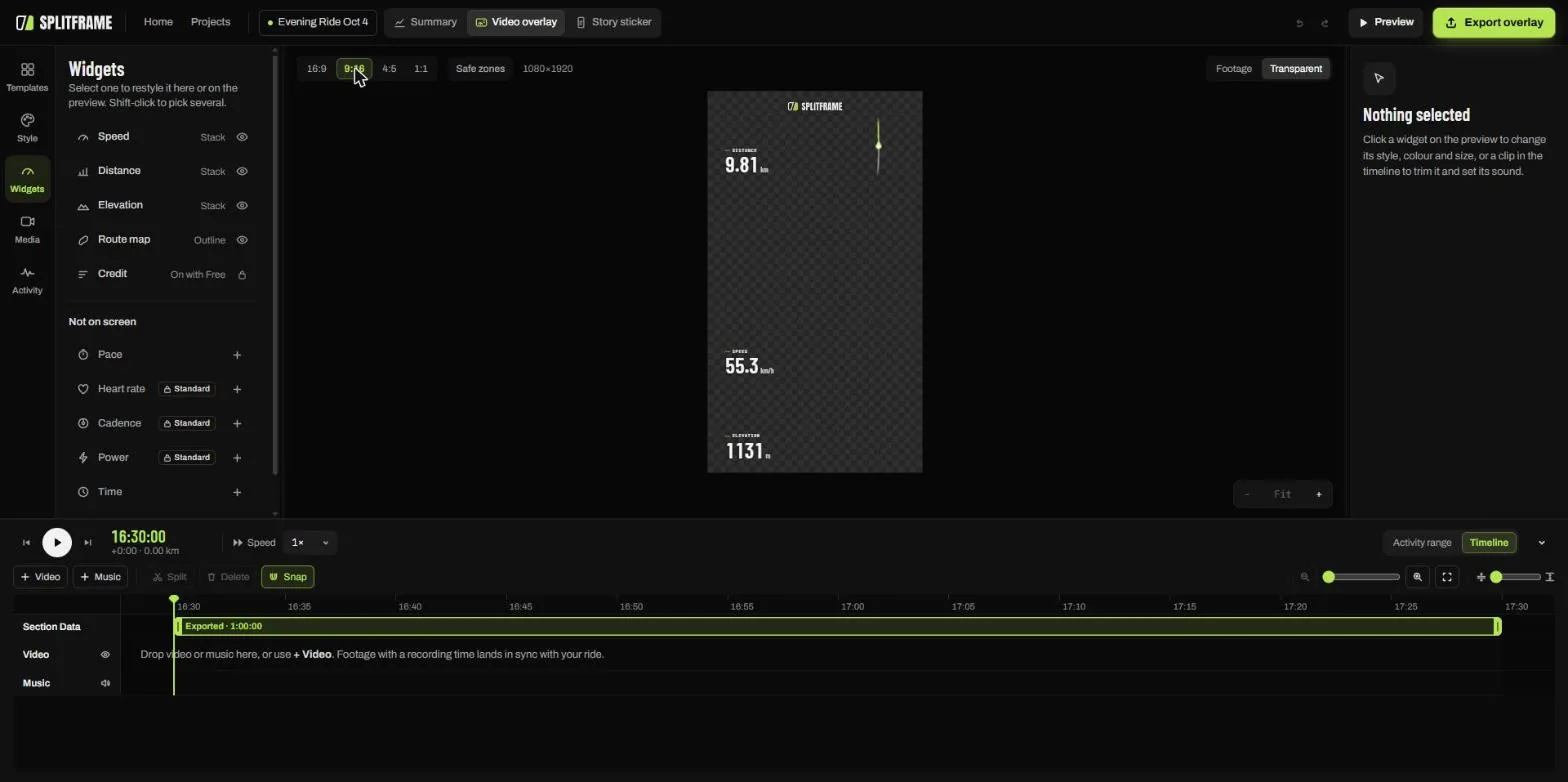
Arrange the numbers where they won’t clash with Instagram’s interface; the Safe zones button shows you the areas to avoid. Then export an MP4 and post it as it is.
Option 2: a transparent layer in CapCut
If you’re already cutting the video in CapCut, export only the overlay from SPLITFRAME and add it on top:
- 01Use CapCut on a computer if you can. The phone app is less dependable with see-through video.
- 02Import the ProRes 4444 .mov or the WebM file into your project.
- 03Drag it onto the timeline as an overlay, sitting over the footage it belongs to.
- 04Scrub to a bright part of the footage. If the numbers sit in a black rectangle, that version of CapCut has thrown away the transparency; try the other file type.
TipCapCut doesn’t publish which transparent formats it supports, so these steps come from testing. Results differ between versions.
Why the black box happens
A transparent video carries an extra channel that says which pixels are see-through. Editors that don’t understand that channel draw the empty areas as black. A finished MP4 has nothing to lose in that way, which is why option 1 is the safer bet for posting from a phone.